 Packetbrew
Essential Network Protocols Every IT Professional Should Know
Network protocols are the invisible backbone of the internet. Every time you browse a website, send an email, or join a video call, dozens of protocols are working silently behind the scenes to make it happen. In this post, we’ll break down the most important network protocols — from your basic computer settings all the way to the security protocols that keep your data safe.
🖥️ Core Computer Settings: IP, DNS & NTP
Before any network communication can happen, your device needs three fundamental configurations.
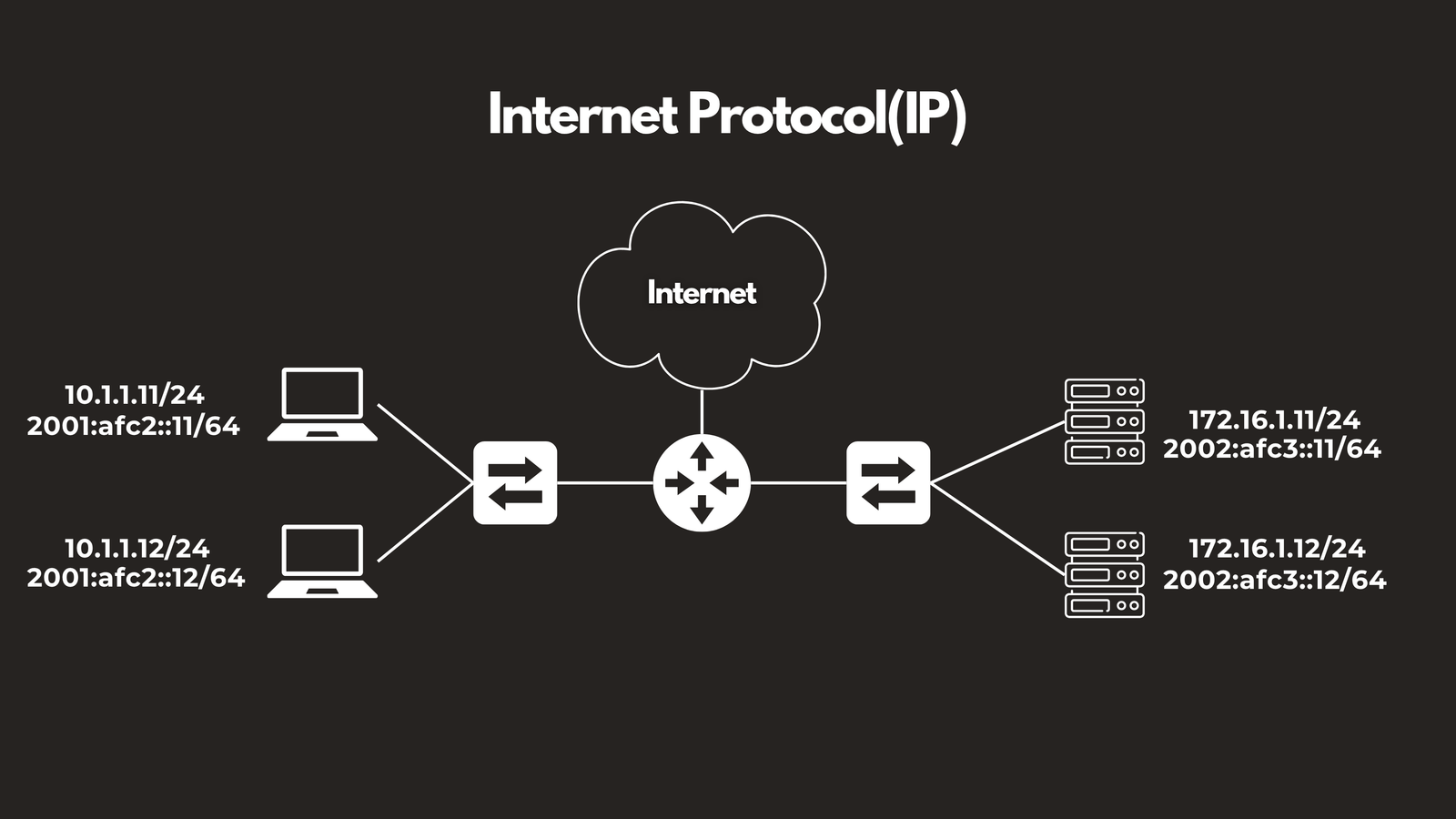
IP — Internet Protocol
IP is the foundation of all network communication. It assigns a unique address to every device on a network, enabling them to identify each other and exchange data. You’ll encounter two versions in the wild — IPv4, which is the classic format most people recognize, and IPv6, which was introduced to handle the explosive growth of internet-connected devices.
DNS — Domain Name System
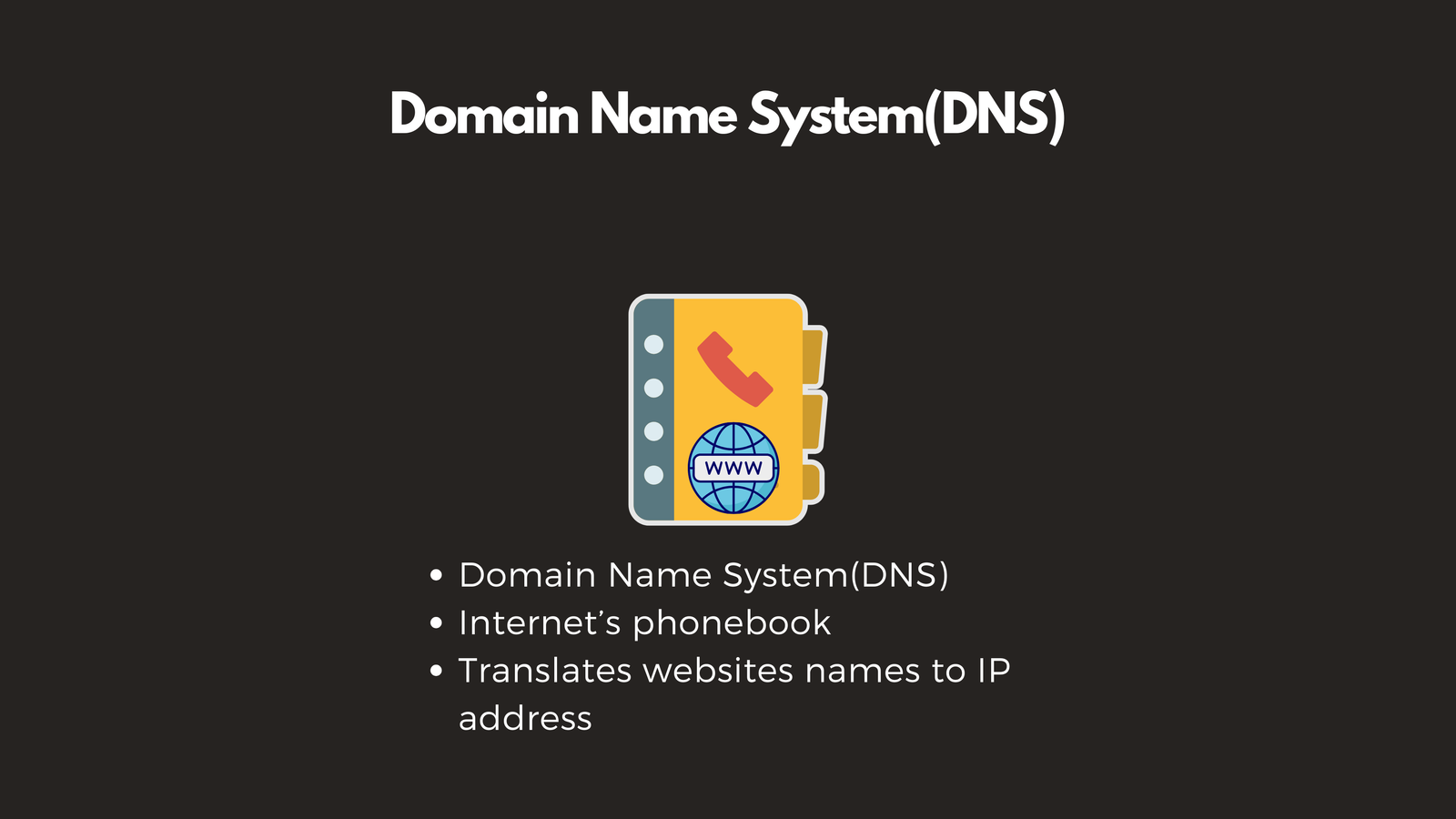
DNS is arguably one of the most important servers on the internet. Think of it as the internet’s phonebook. When you type worldvids.com into your browser, your computer doesn’t actually know where that is — DNS translates that human-friendly name into an IP address your device can use. Without DNS, you’d have to memorize a string of numbers for every website you visit.
📌 Port: TCP/UDP port 53
NTP — Network Time Protocol
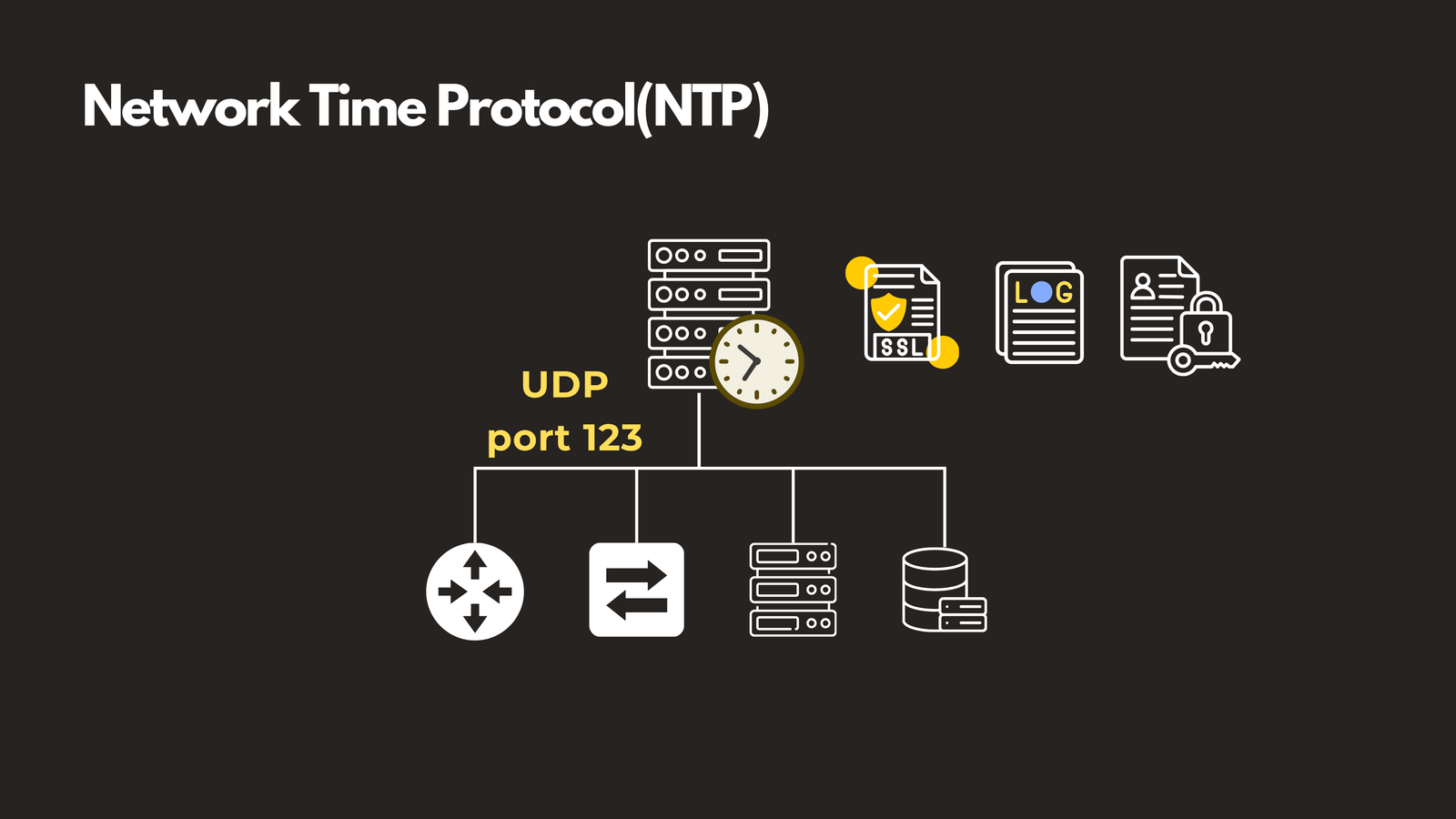
Accurate time might seem trivial, but in enterprise networks it’s critical. Security certificates, log correlation, and authentication systems all depend on synchronized clocks. NTP ensures that every device on your network is pulling time from the same source, keeping everything in lockstep.
📌 Port: UDP port 123
🏠 Local Network Protocols: ARP, DHCP, LLDP & CDP
Once your device is configured, it connects to the local network. A set of protocols then takes over to handle communication within that local environment.
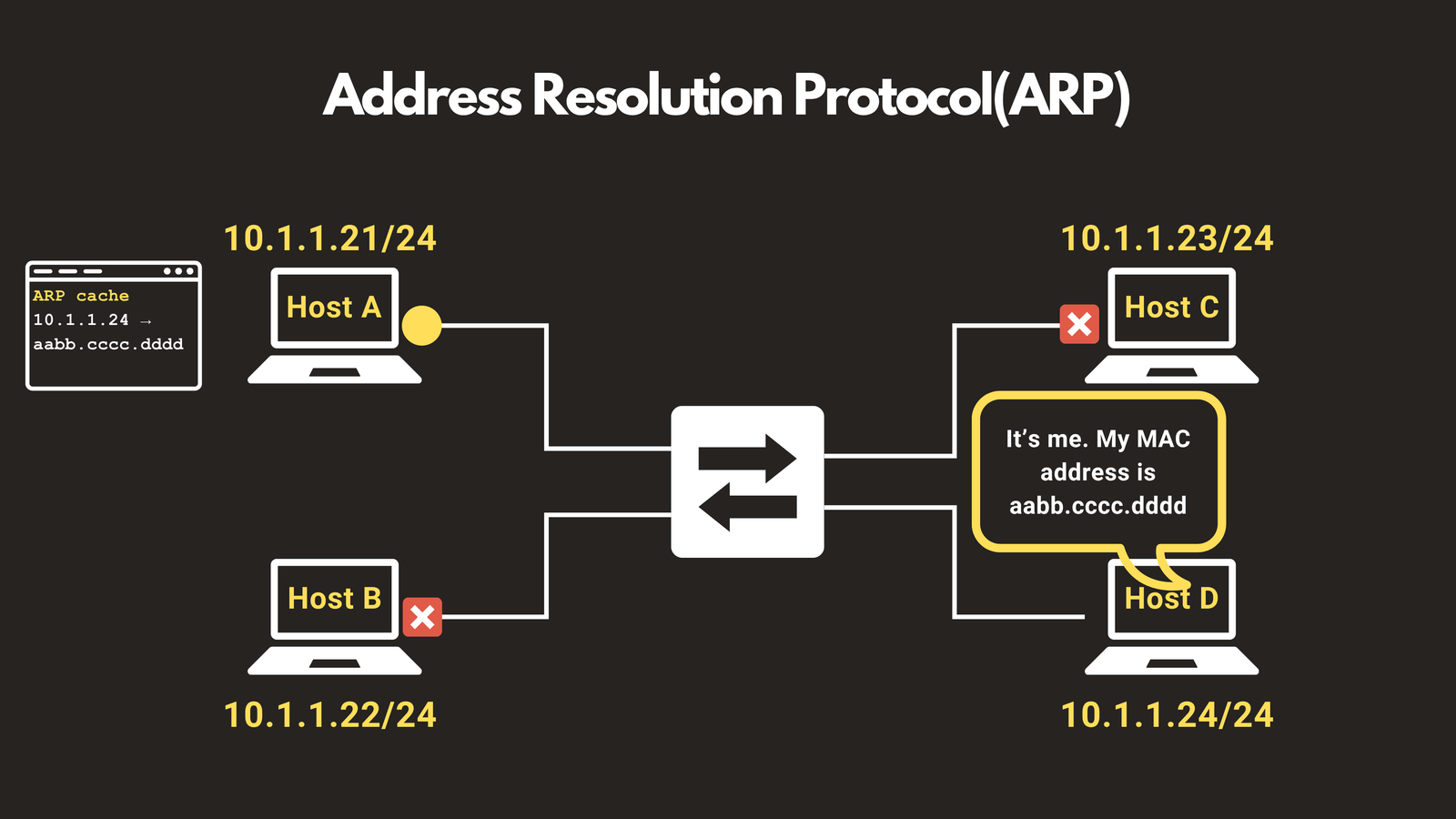
ARP — Address Resolution Protocol
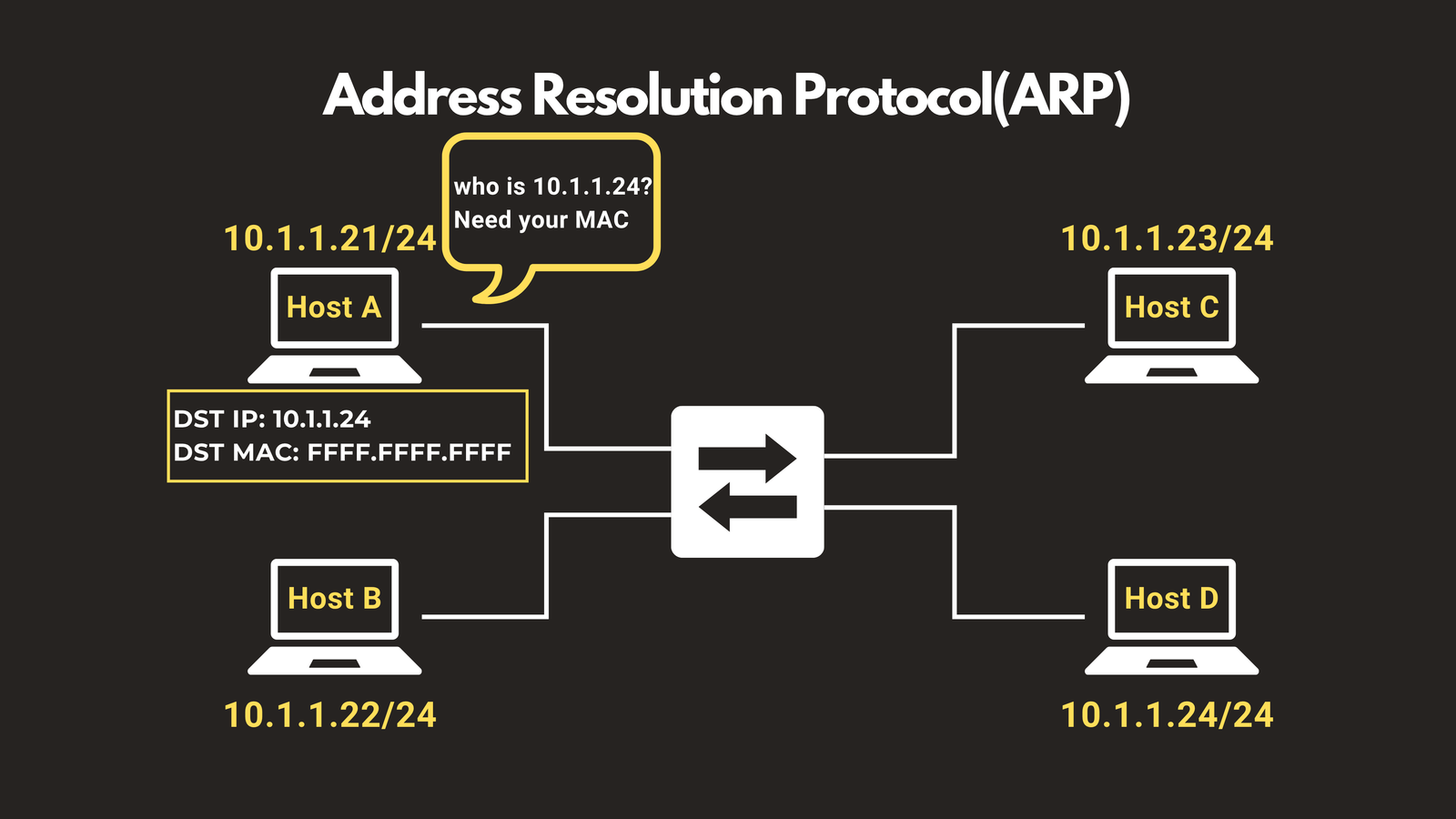
IP addresses tell you who to talk to, but ARP figures out how to reach them. It translates a known IP address into a physical MAC address on the local network. When your computer wants to reach 10.1.1.24, it broadcasts a message across the network asking for that device’s MAC address. The target device responds, and your computer stores the result in its ARP cache for future use — making subsequent communication faster and direct.
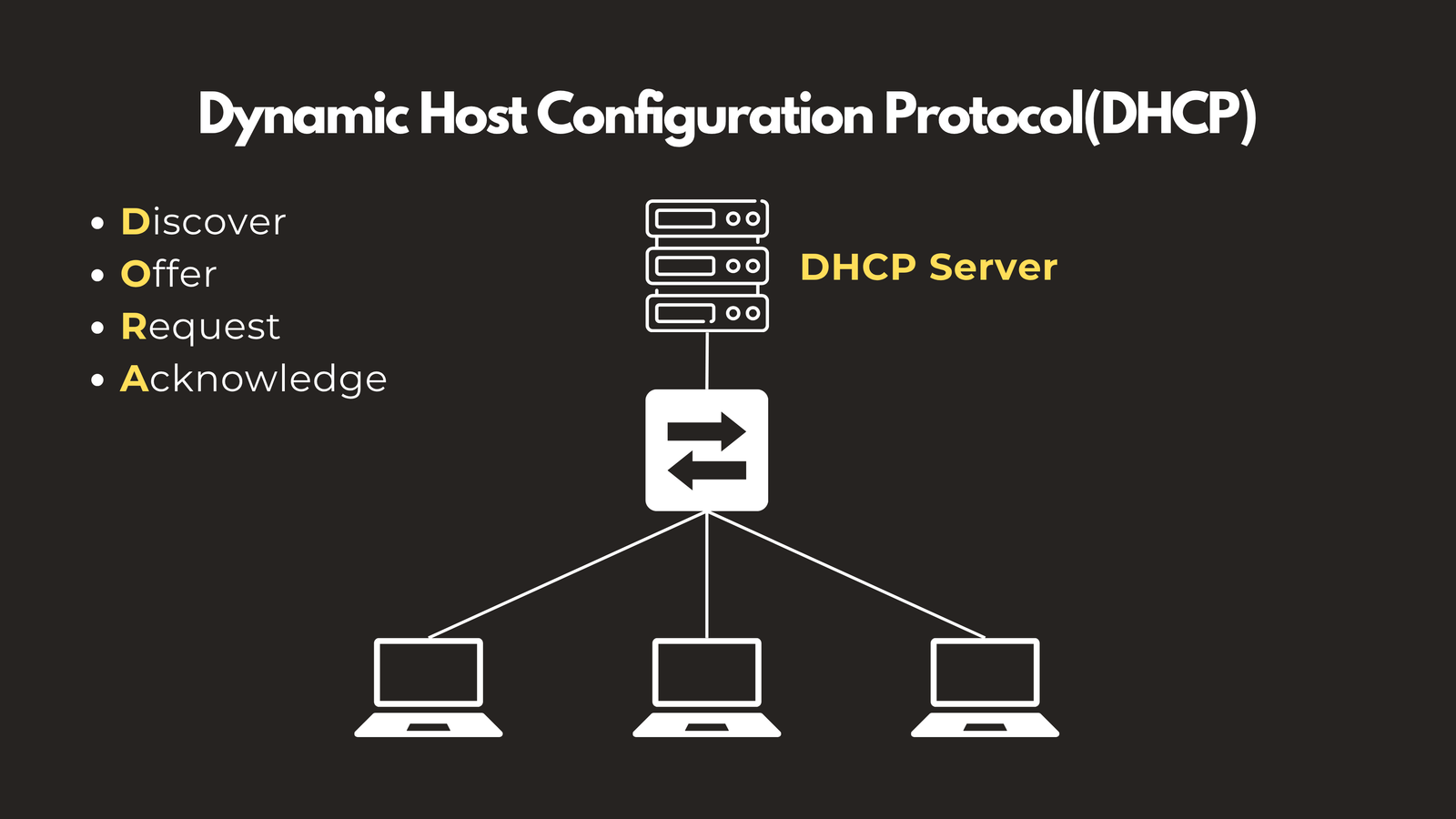
DHCP — Dynamic Host Configuration Protocol
Without DHCP, someone would have to manually assign an IP address to every single device that joins a network. DHCP automates this entirely. When a new device connects, it goes through a four-step process — Discover, Offer, Request, Acknowledge (DORA) — at the end of which it receives an IP address, subnet mask, default gateway, and DNS server automatically.
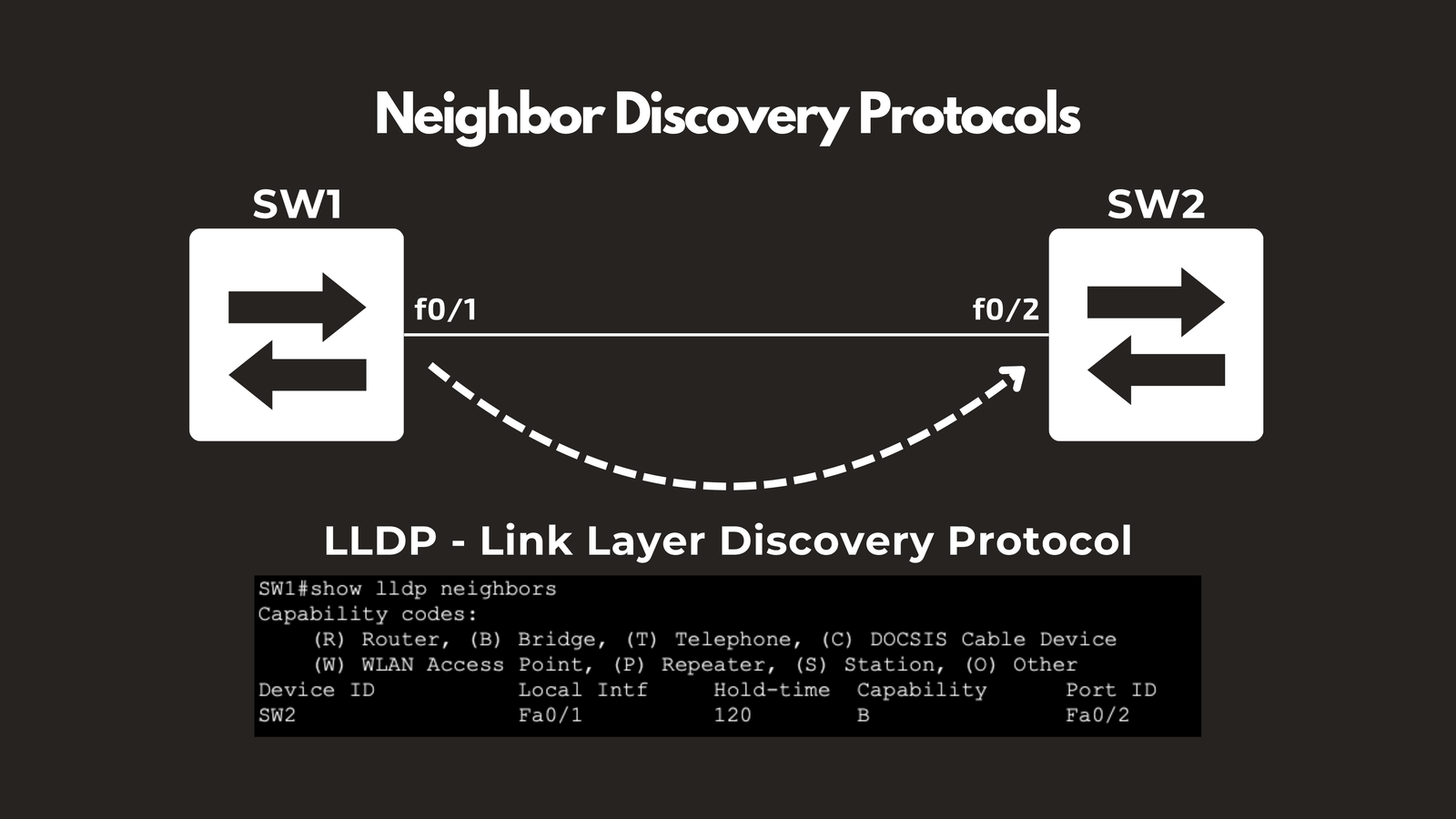
LLDP — Link Layer Discovery Protocol
LLDP is an open-standard protocol that allows network devices to announce themselves to their directly connected neighbors. This makes it easy to map out your network and understand which devices are connected to which ports — invaluable for troubleshooting and documentation.
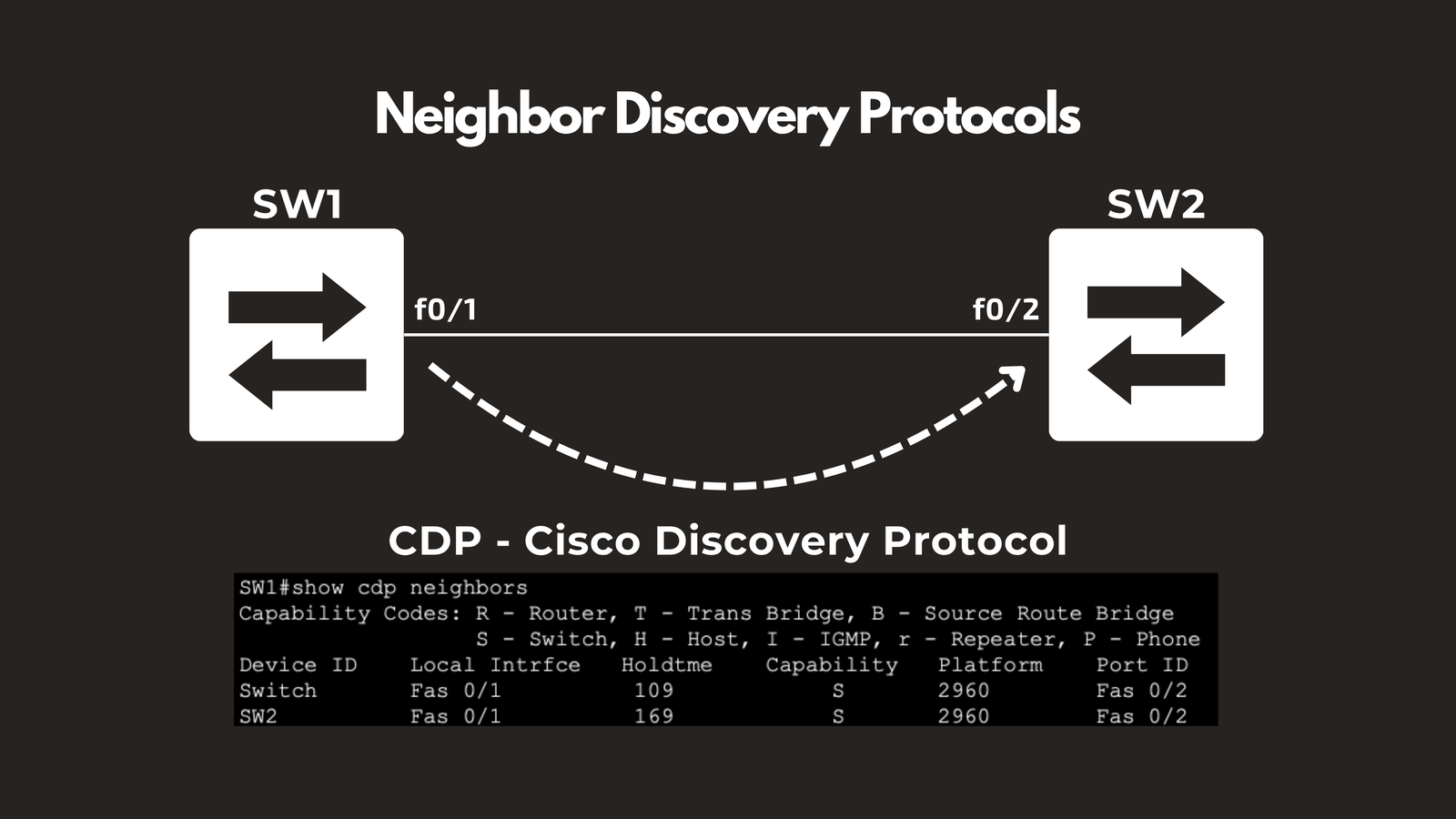
CDP — Cisco Discovery Protocol
CDP is Cisco’s proprietary equivalent of LLDP. It performs the same neighbor discovery function but is exclusive to Cisco devices. If your network runs on Cisco hardware, CDP gives you rich details about adjacent devices including device type, IP address, and interface information.
🗺️ Routing Protocols: Getting Data Where It Needs to Go
Routing protocols determine the best path for data to travel across networks. They come in two flavors — Interior and Exterior.
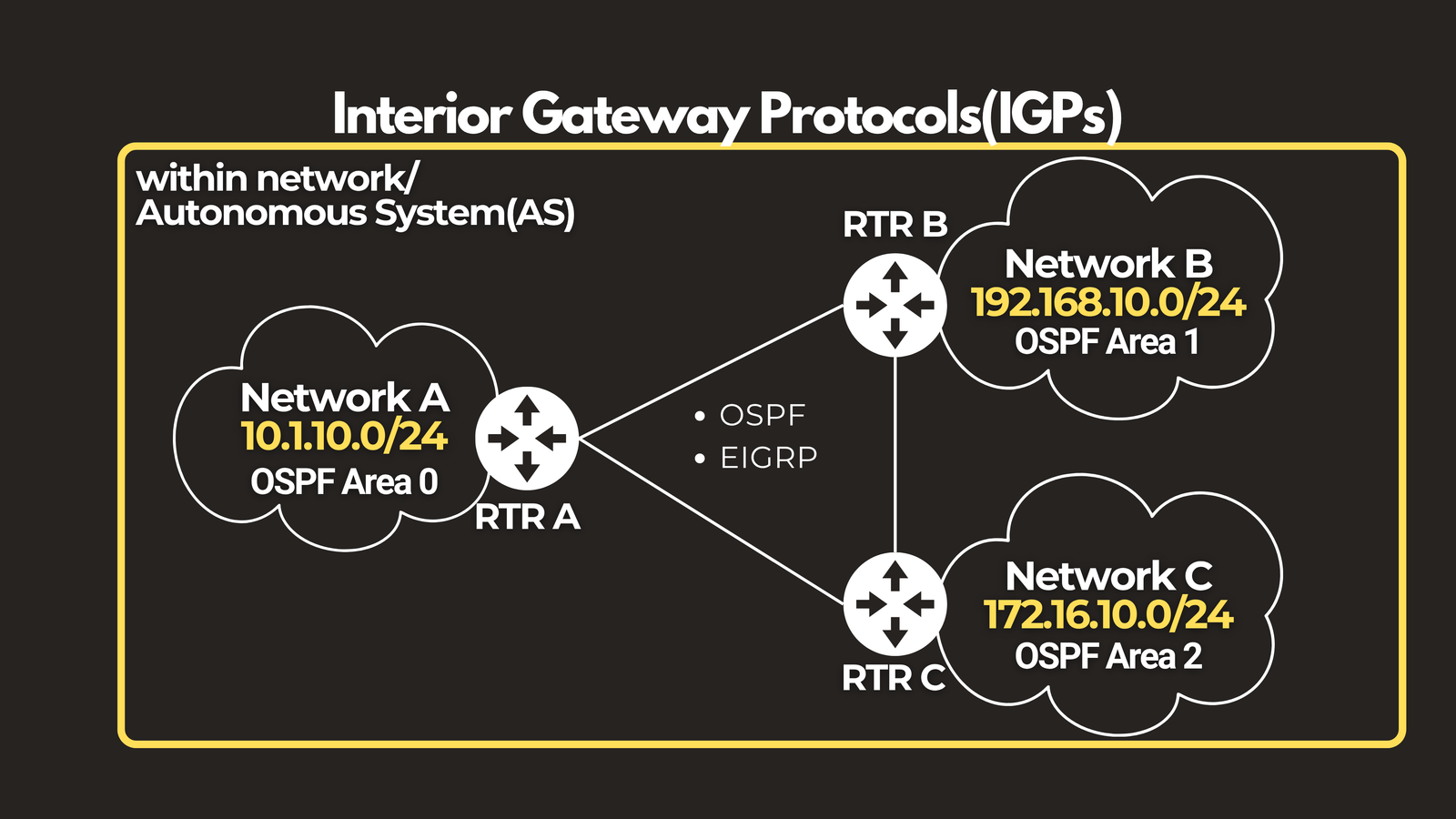
Interior Gateway Protocols (IGP)
IGPs manage routing within a single organization’s network.
- RIP (Routing Information Protocol) — One of the oldest routing protocols. It uses hop count to determine the best path, but is limited to 15 hops, making it unsuitable for large networks.
- OSPF (Open Shortest Path First) — The most widely deployed IGP. Routers share a complete map of the network and use the Dijkstra algorithm to calculate the most efficient path. Highly scalable and vendor-neutral.
- EIGRP (Enhanced Interior Gateway Routing Protocol) — Cisco’s advanced routing protocol that uses bandwidth and delay metrics for smarter, faster path selection. Converges quickly and is efficient in large networks.
- IS-IS (Intermediate System to Intermediate System) — A link-state protocol similar to OSPF, favored by large ISPs and carriers for its scalability and native support for both IPv4 and IPv6.
Exterior Gateway Protocols (EGP)
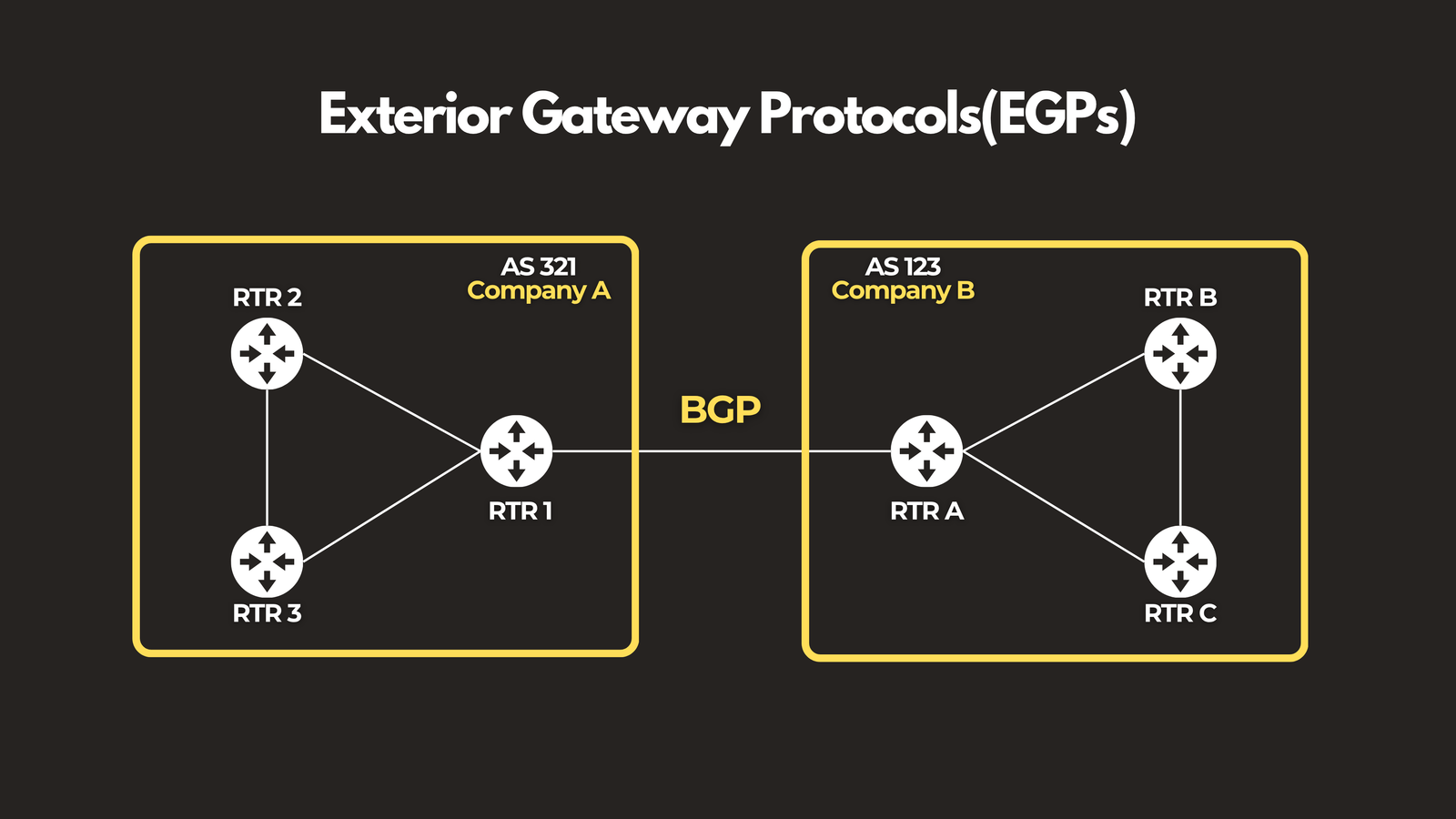
EGPs handle routing between different organizations on the internet.
- BGP (Border Gateway Protocol) — The routing protocol of the internet itself. BGP manages how traffic flows between different autonomous systems — ISPs, enterprises, and cloud providers. Every time data crosses organizational boundaries on the internet, BGP is making the routing decisions.
check out this link if you want to learn more about routing protocols: https://www.youtube.com/playlist?list=PLGPTTwip0FVkG_85iNLh8LTb0On5-GVwU
🚦 Transport Protocols: TCP & UDP
Transport protocols handle the end-to-end delivery of data — breaking large chunks into segments, routing them across the network, and reassembling them at the destination.
TCP — Transmission Control Protocol
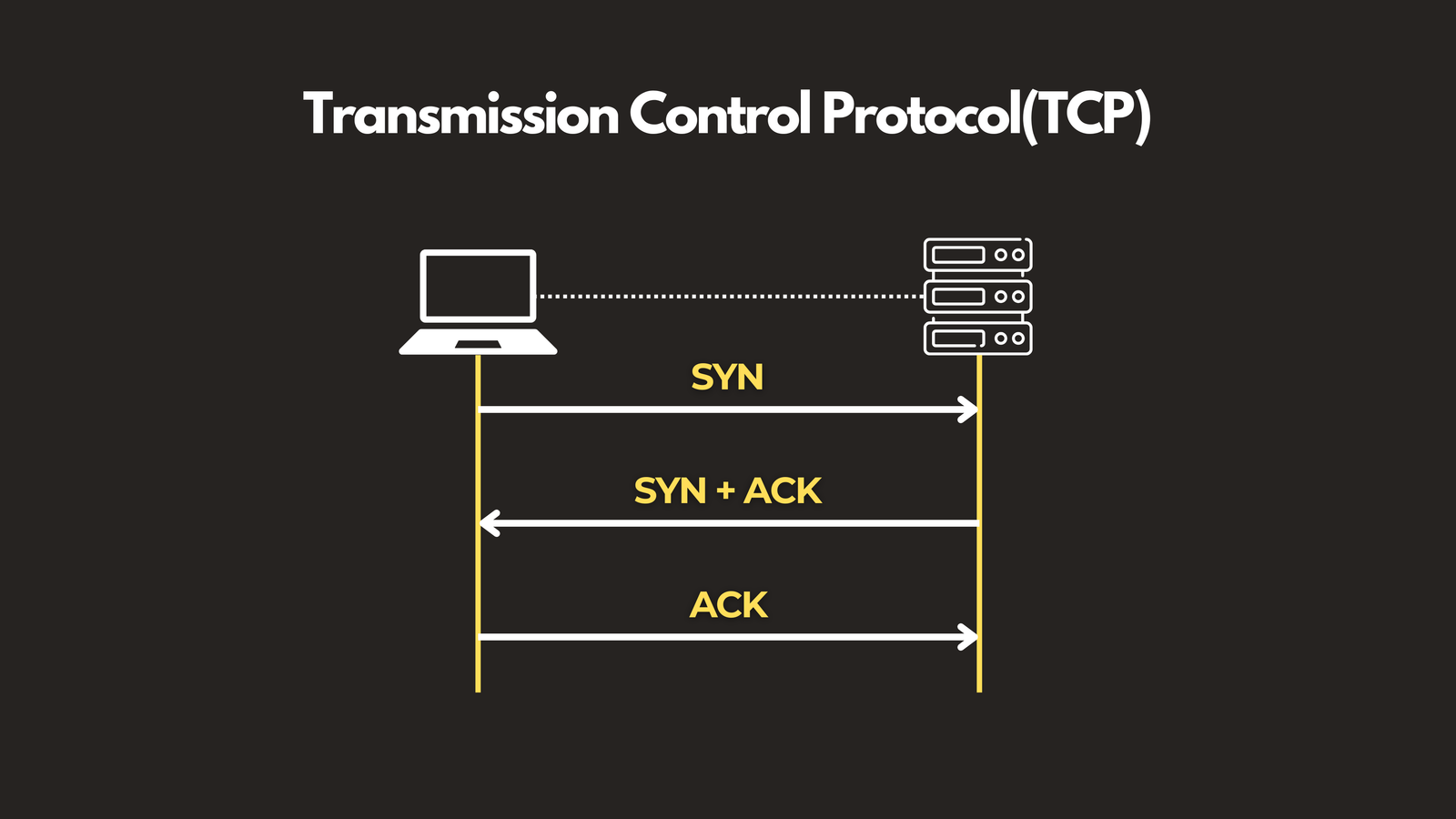
TCP is the reliable workhorse of the internet. It establishes a connection using a three-way handshake (SYN → SYN-ACK → ACK), assigns sequence numbers to every segment, requires acknowledgement for each one, and retransmits anything that goes missing. It also includes flow control to prevent congestion. Use TCP when accuracy and order matter — web browsing, email, file transfers.
UDP — User Datagram Protocol
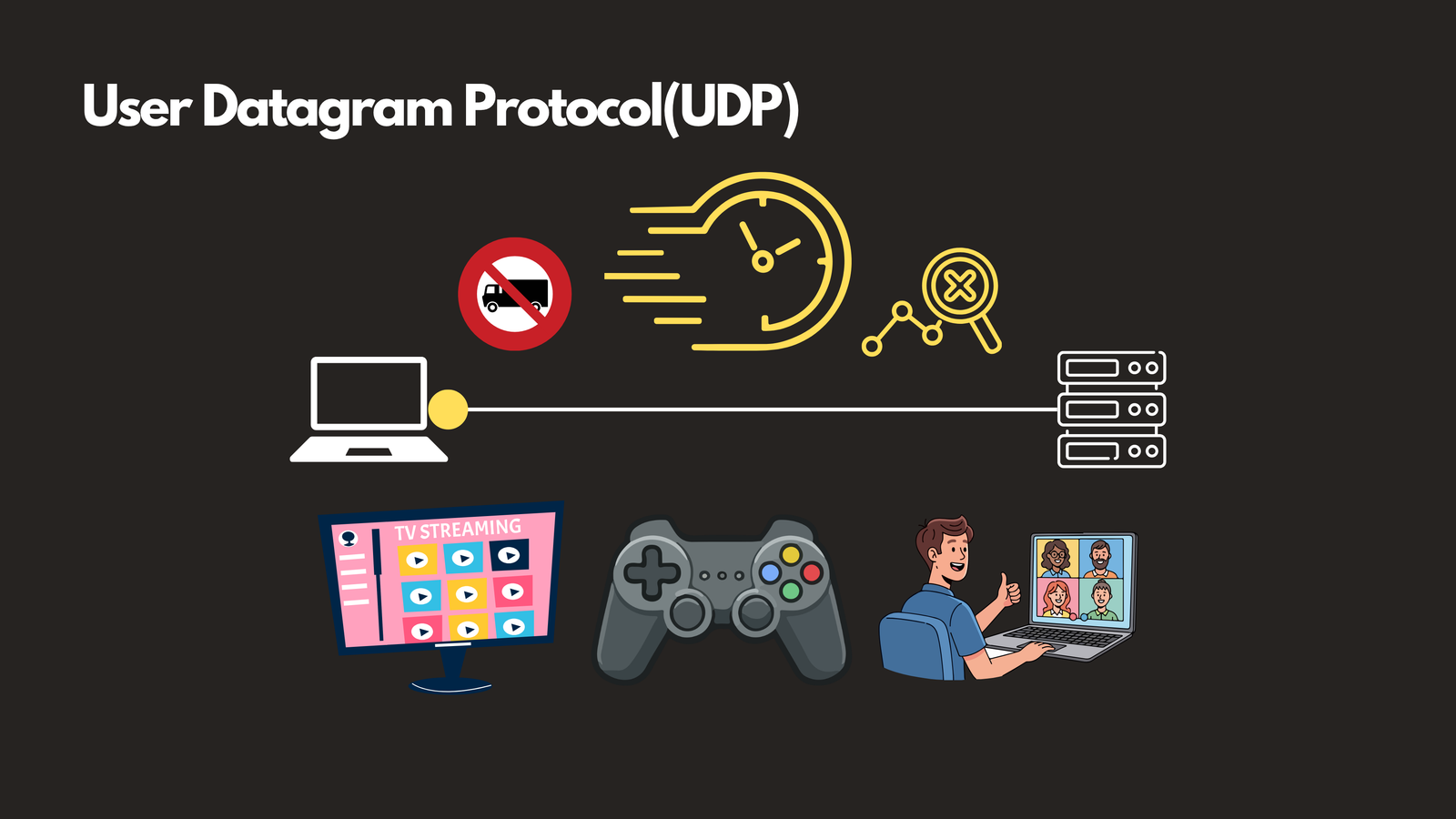
UDP trades reliability for speed. There’s no handshake, no acknowledgement, no retransmission — data is fired off and the sender moves on. This makes it ideal for latency-sensitive applications like video streaming, online gaming, and VoIP, where a slightly dropped packet is far less disruptive than a delayed one.
💻 Application Protocols: FTP, SMTP & HTTP/HTTPS
These protocols power the everyday applications and services that users interact with directly.
FTP & SFTP — File Transfer Protocol
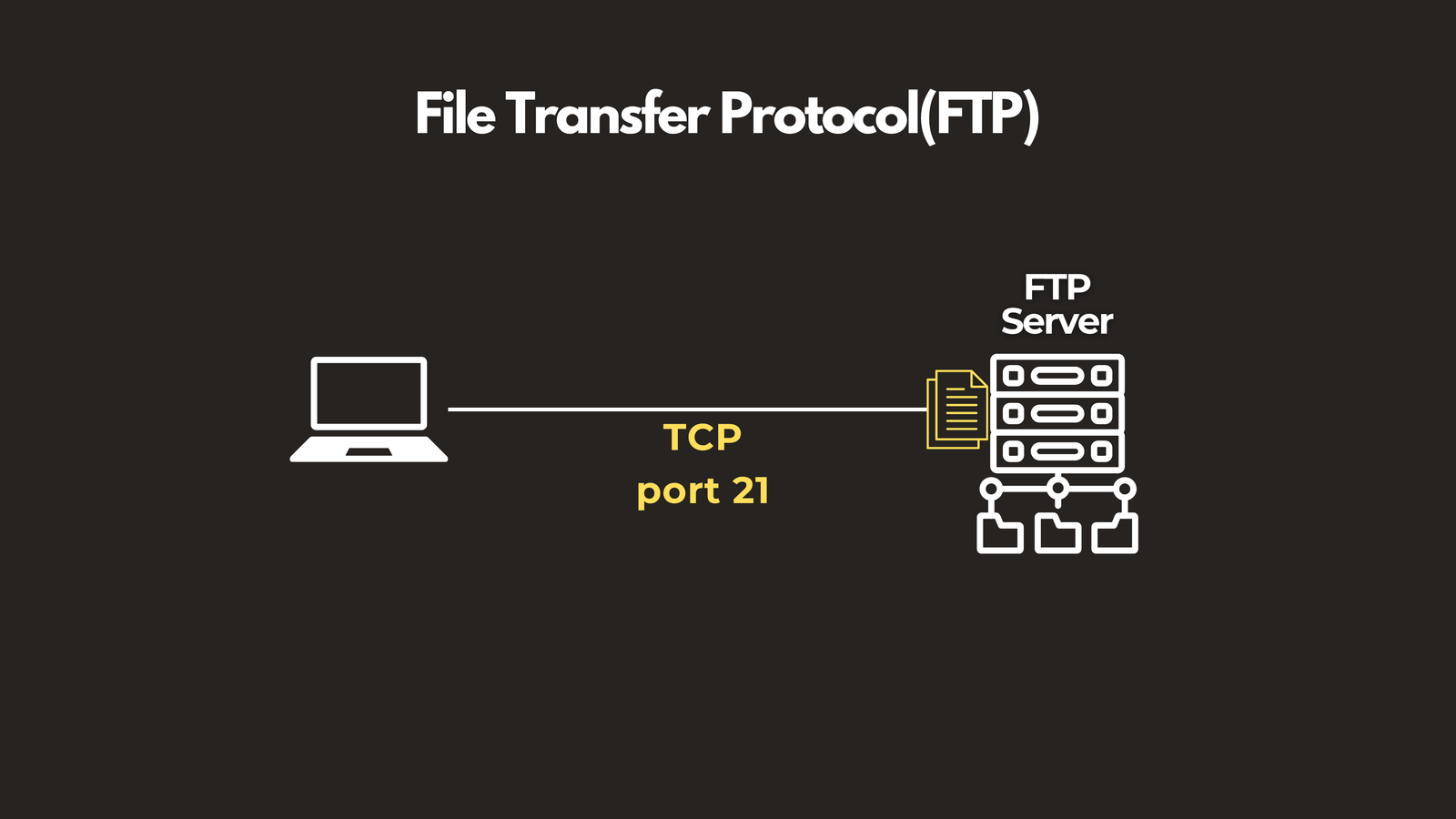
FTP is the classic protocol for transferring files between computers over a network. It supports both uploading and downloading but transmits data in plaintext, making it insecure for sensitive transfers.
📌 FTP Port: TCP 21
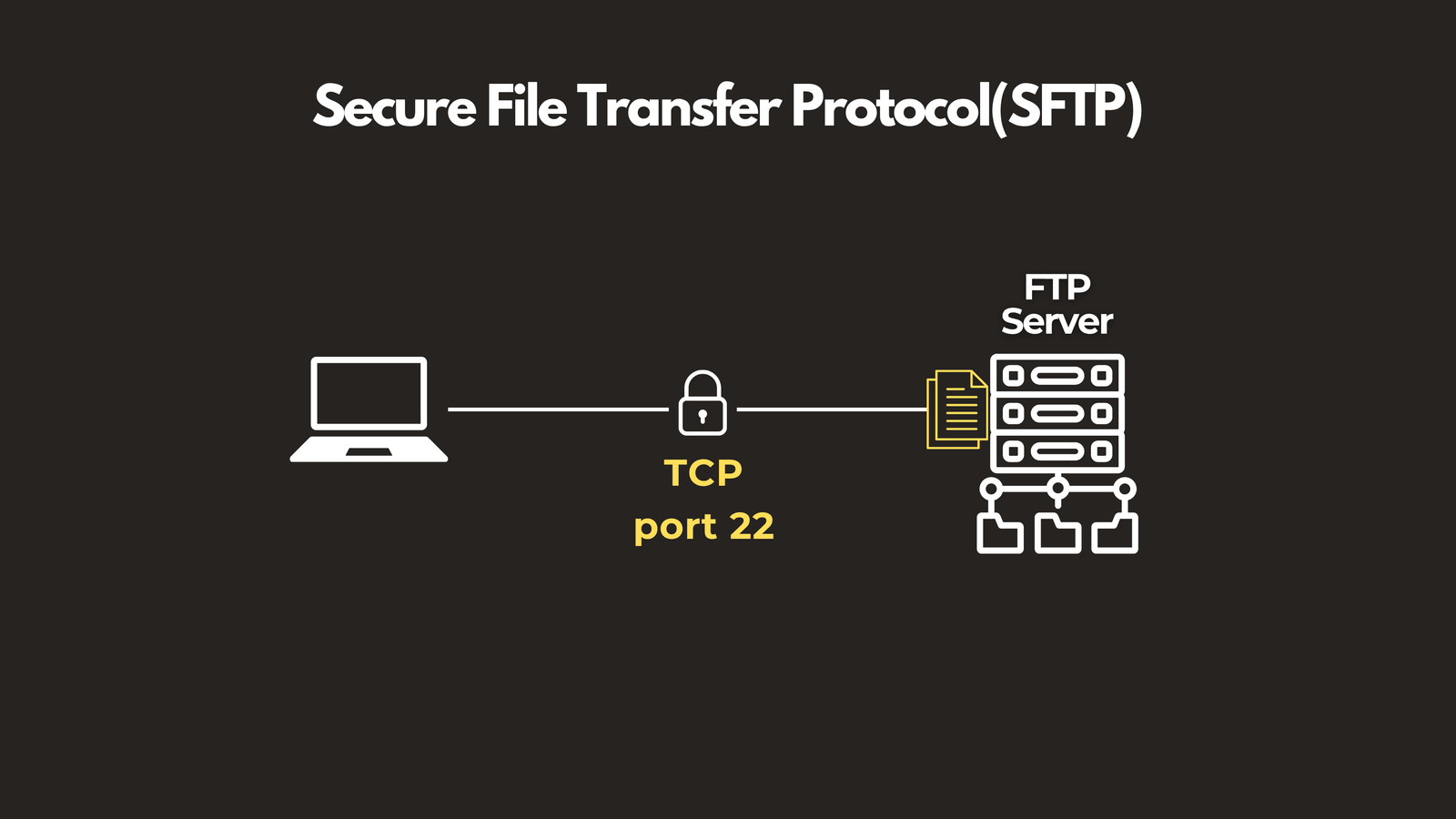
 SFTP (Secure File Transfer Protocol) wraps the same file transfer capability in SSH encryption, making it the modern standard for secure file exchange.
📌 SFTP Port: TCP 22
SMTP — Simple Mail Transfer Protocol
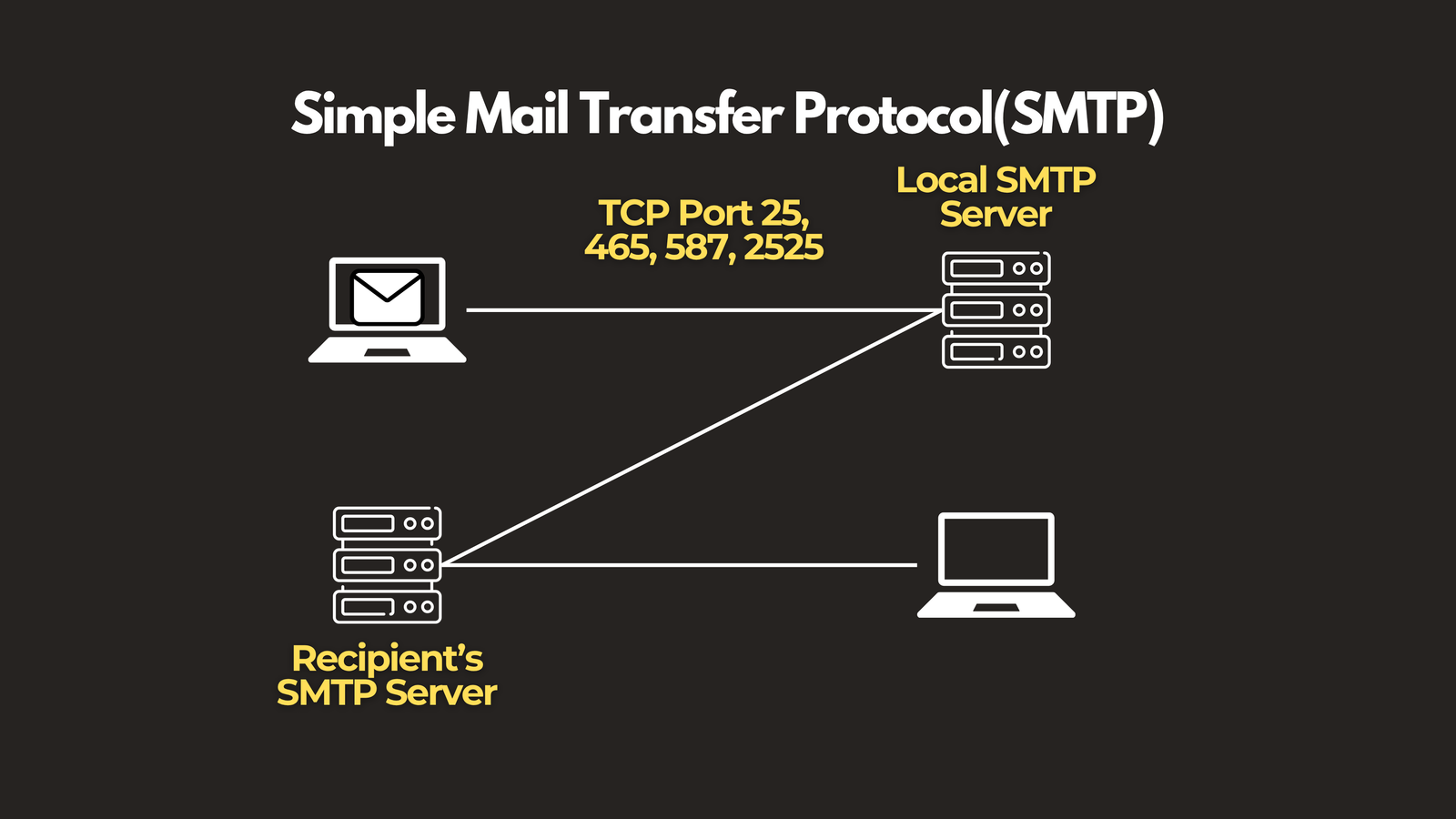
Every time you hit “Send” on an email, SMTP is doing the heavy lifting. It’s the protocol responsible for delivering your message from your mail client to the recipient’s mail server. Modern SMTP deployments use secure ports to protect message transmission.
📌 Ports: TCP 25 (legacy), 465, 587, 2525
HTTP — HyperText Transfer Protocol
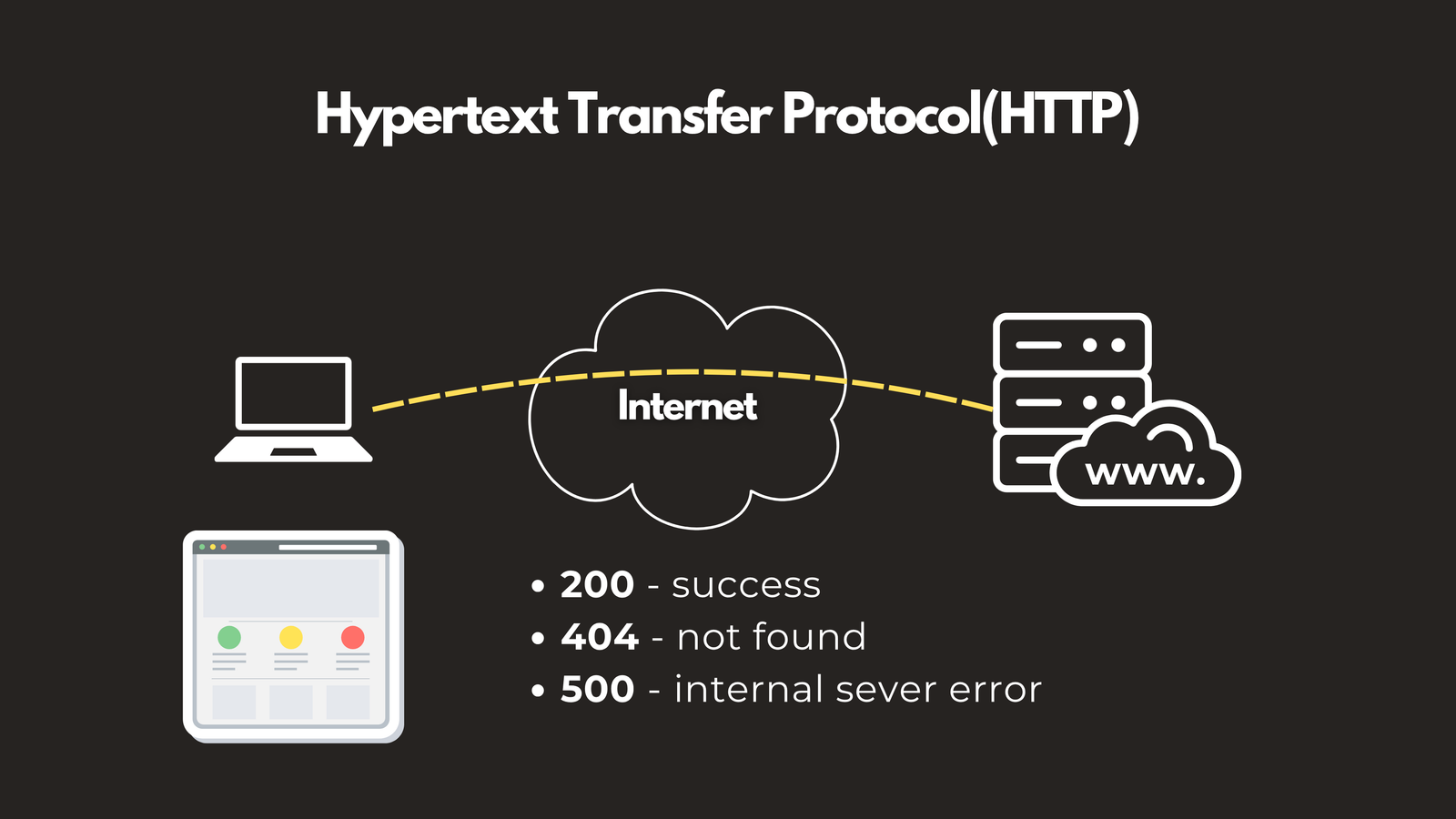
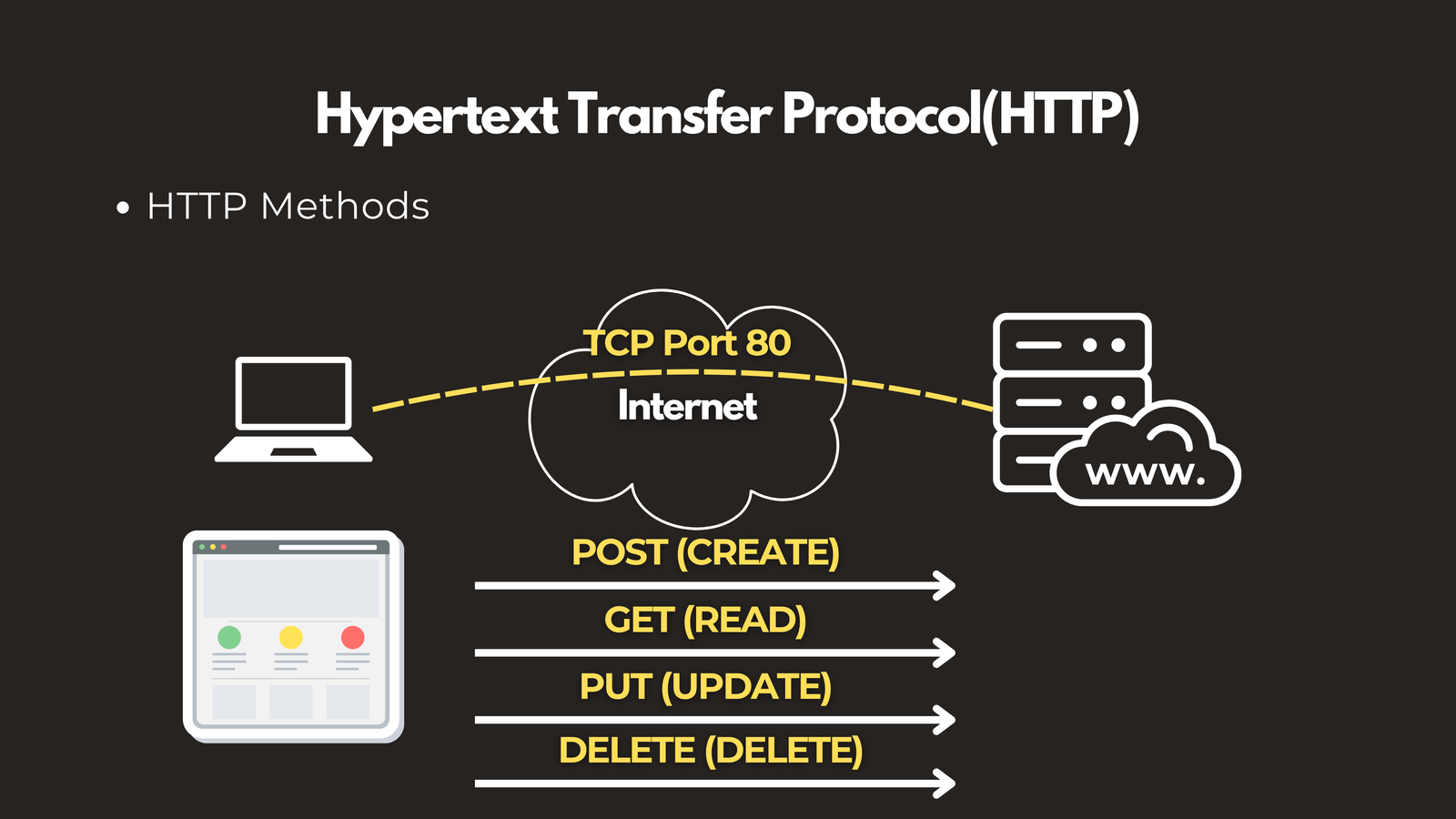
HTTP is the language of the web. Your browser uses it to request pages from servers, and servers respond with status codes — 200 OK, 404 Not Found, 500 Internal Server Error — along with the requested content. HTTP supports methods like GET, POST, PUT, and DELETE to handle different types of operations.
📌 Port: TCP 80
HTTPS — HTTP Secure
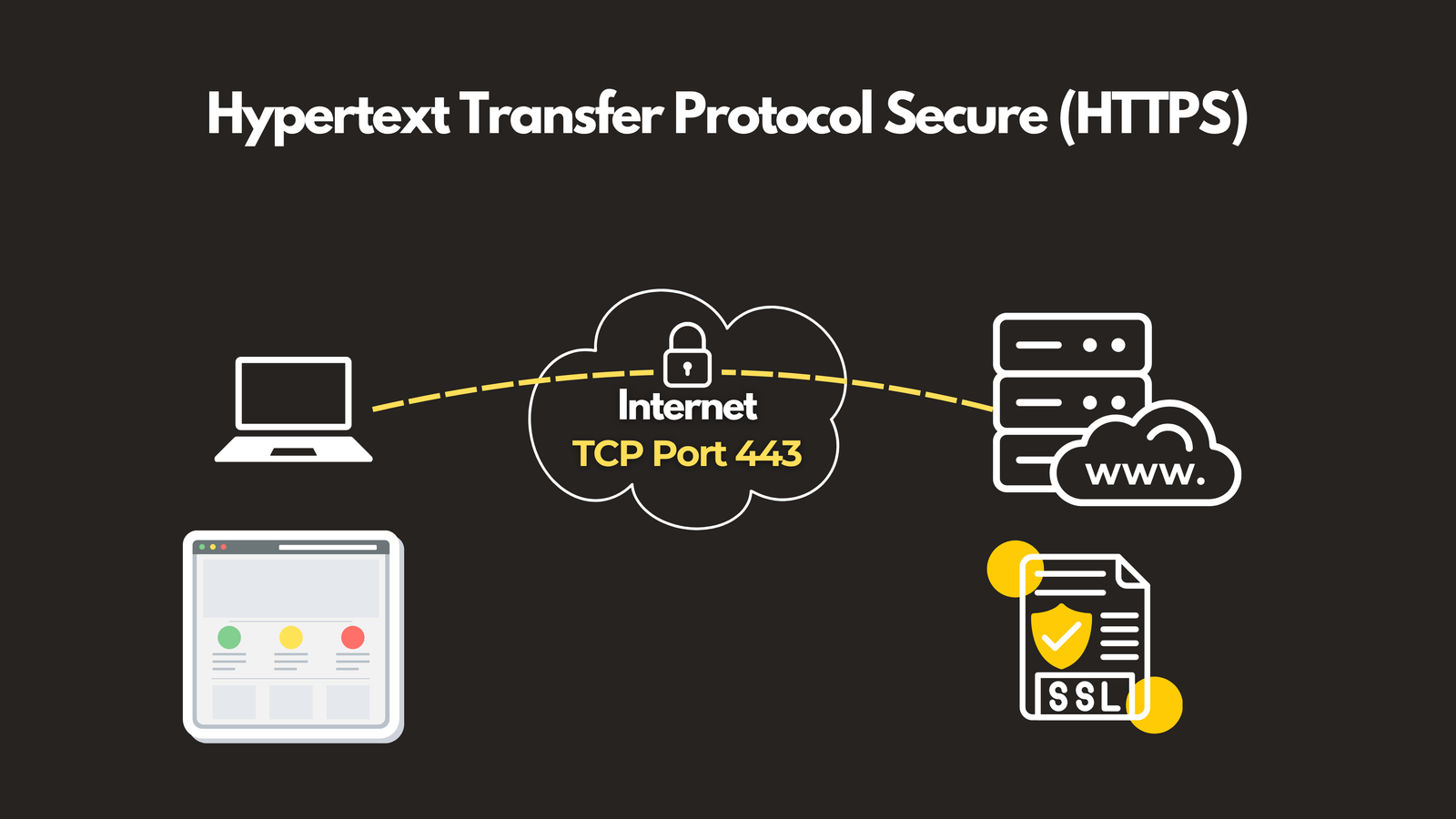
HTTPS is HTTP with a security layer — TLS (Transport Layer Security) — applied on top. It encrypts all data exchanged between your browser and the server, and uses SSL/TLS certificates to verify the server’s identity. Every modern website should be running HTTPS.
📌 Port: TCP 443
📡 Monitoring & Remote Access: SNMP, ICMP & Telnet
Keeping a network running smoothly requires constant visibility into device health and the ability to access devices remotely.
SNMP — Simple Network Management Protocol
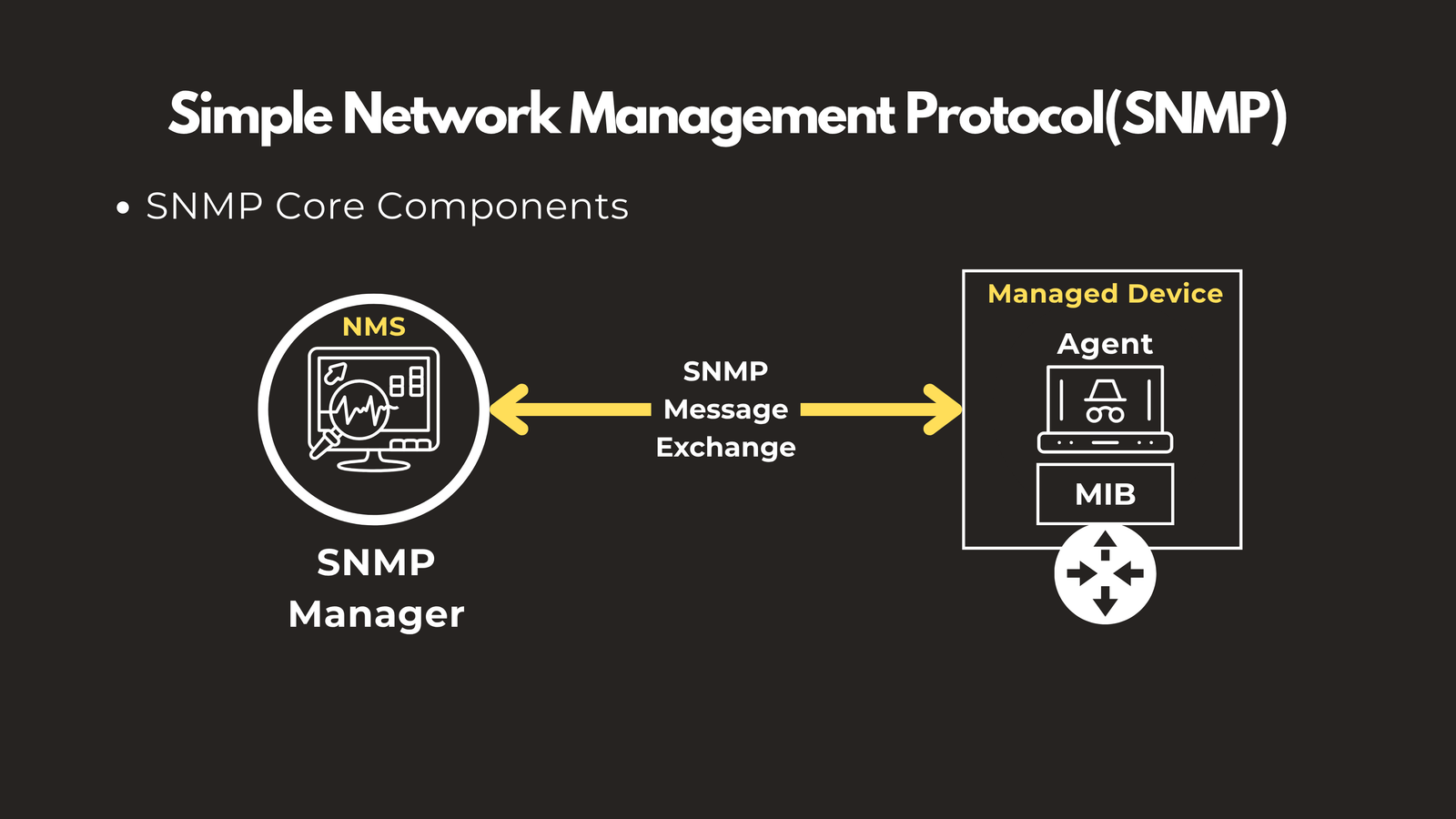
SNMP is the health monitoring system for your network. It has three core components:
- SNMP Manager — The central server that collects data (e.g., SolarWinds, PRTG)
- SNMP Agent — Software running on each monitored device
- MIB (Management Information Base) — The database that defines what metrics can be collected
The manager polls agents for information like CPU usage, bandwidth, and error rates, giving administrators a real-time view of network health.
ICMP — Internet Control Message Protocol
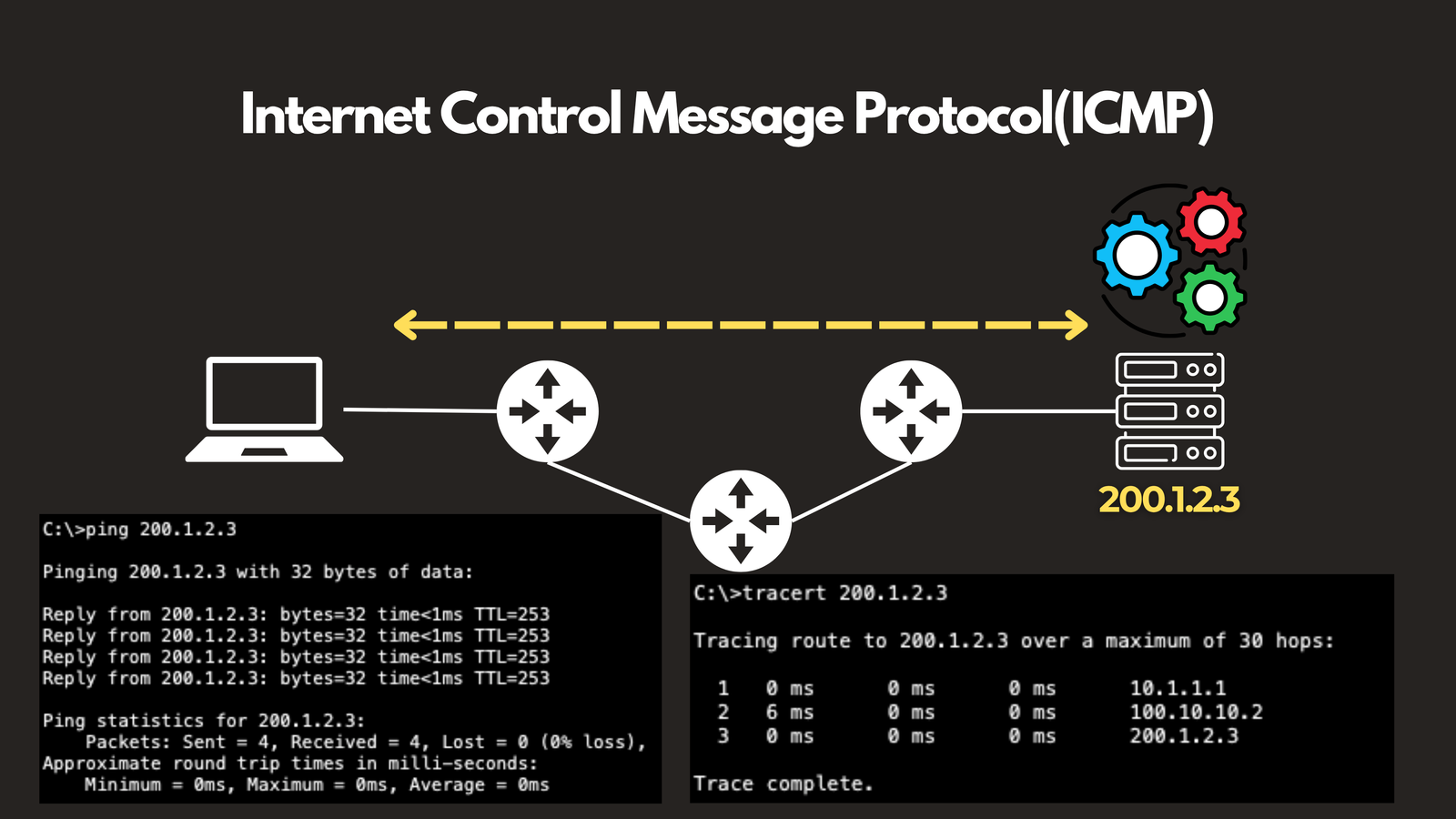
ICMP is the diagnostic backbone of networking. It’s the protocol behind ping (tests if a device is reachable) and traceroute (maps the path data takes to its destination). ICMP doesn’t carry application data — it exists purely to report on and diagnose network conditions.
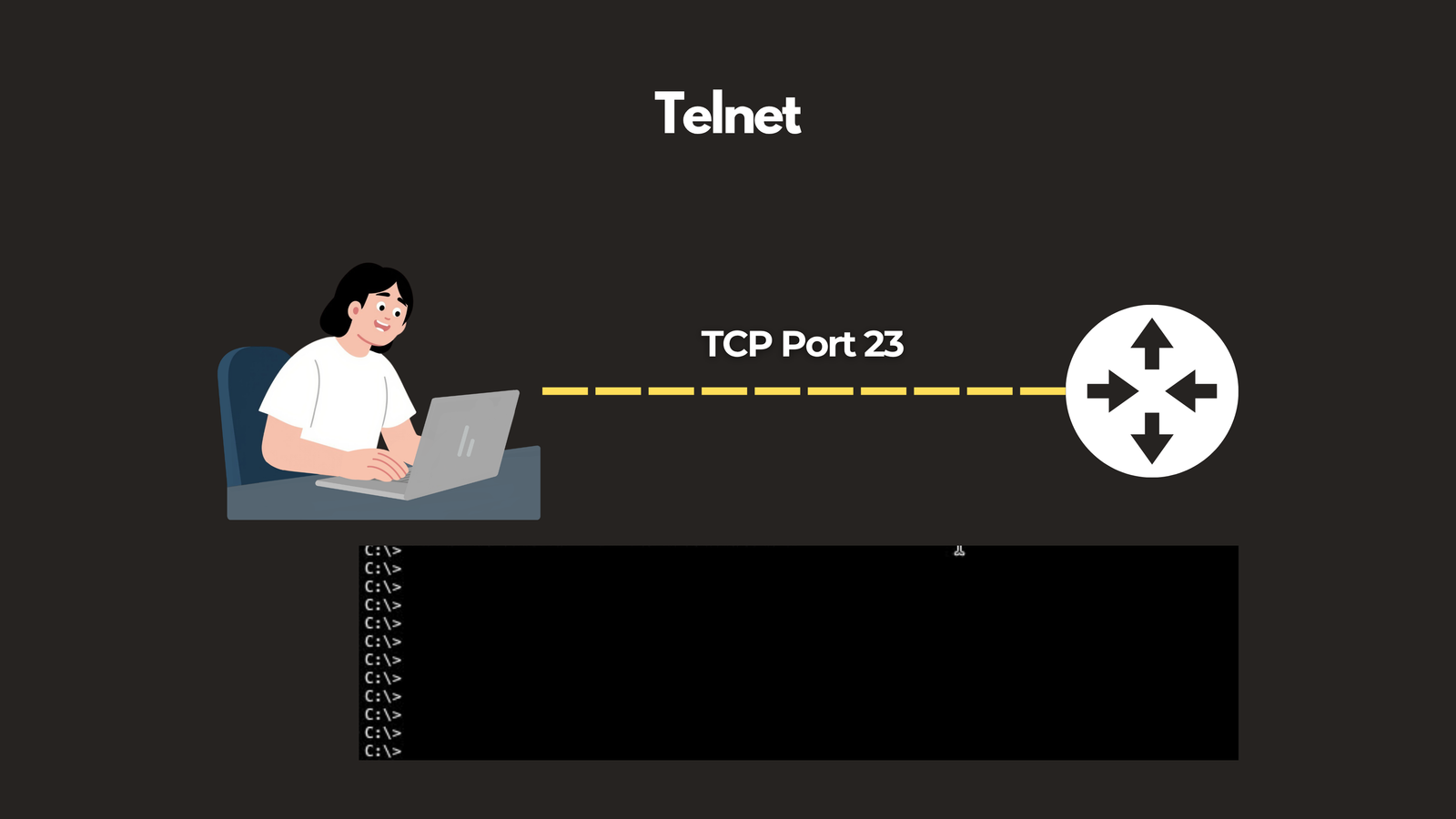
Telnet
Telnet was one of the earliest remote access protocols, allowing administrators to log into and manage devices over a network via a text-based interface. However, it transmits everything — including passwords — in plaintext, making it a significant security risk. It has largely been replaced by SSH.
📌 Port: TCP 23
🔒 Security Protocols: SSH, RADIUS, TACACS+ & IPsec
Understanding how to monitor your network is only half the picture. You also need to know how your data is being protected.
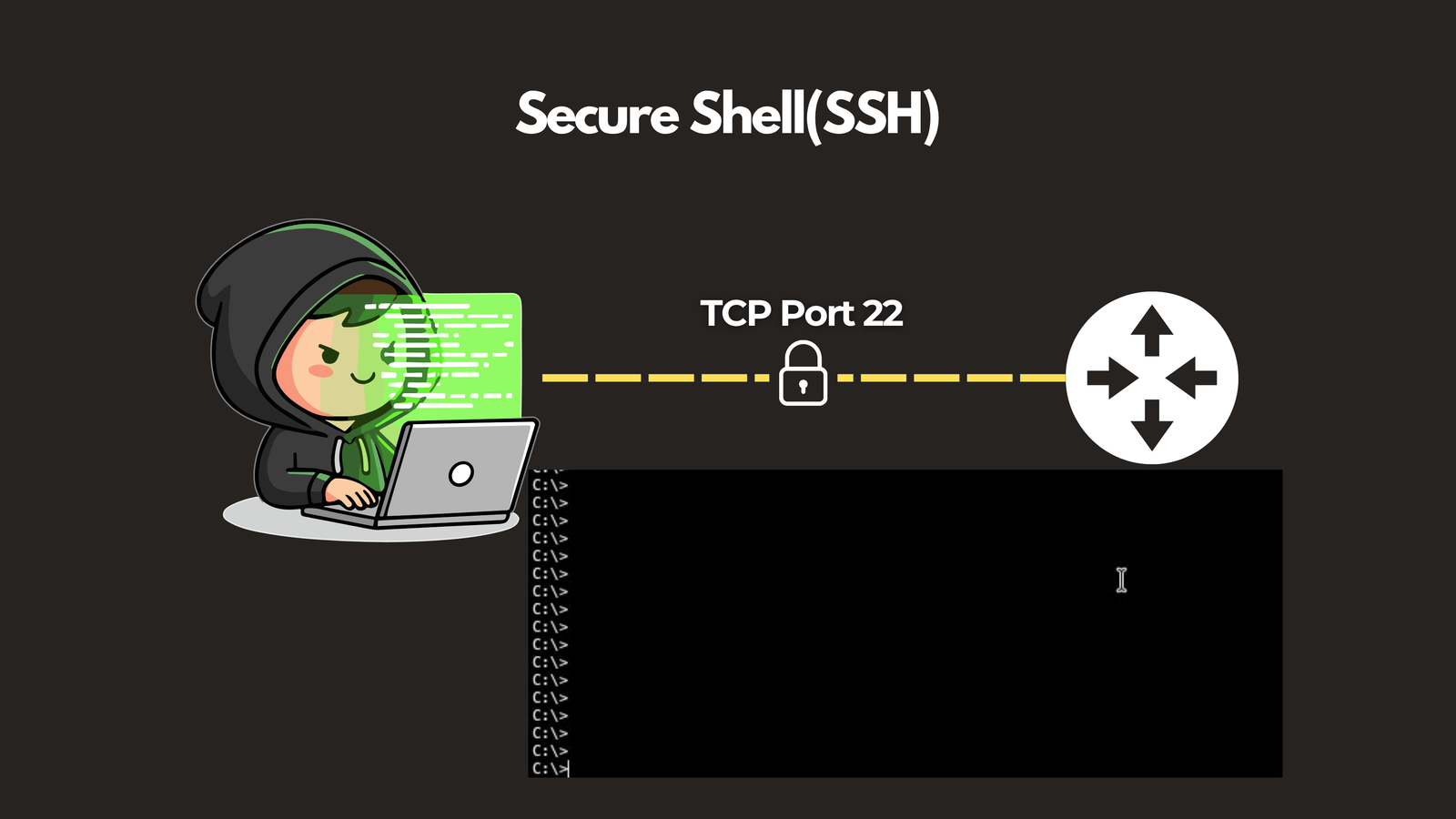
SSH — Secure Shell
SSH is the secure replacement for Telnet. It creates an encrypted tunnel for remotely accessing and managing servers and network devices, protecting credentials and session data from interception. If you’re managing any network device or server today, SSH is the standard.
📌 Port: TCP 22
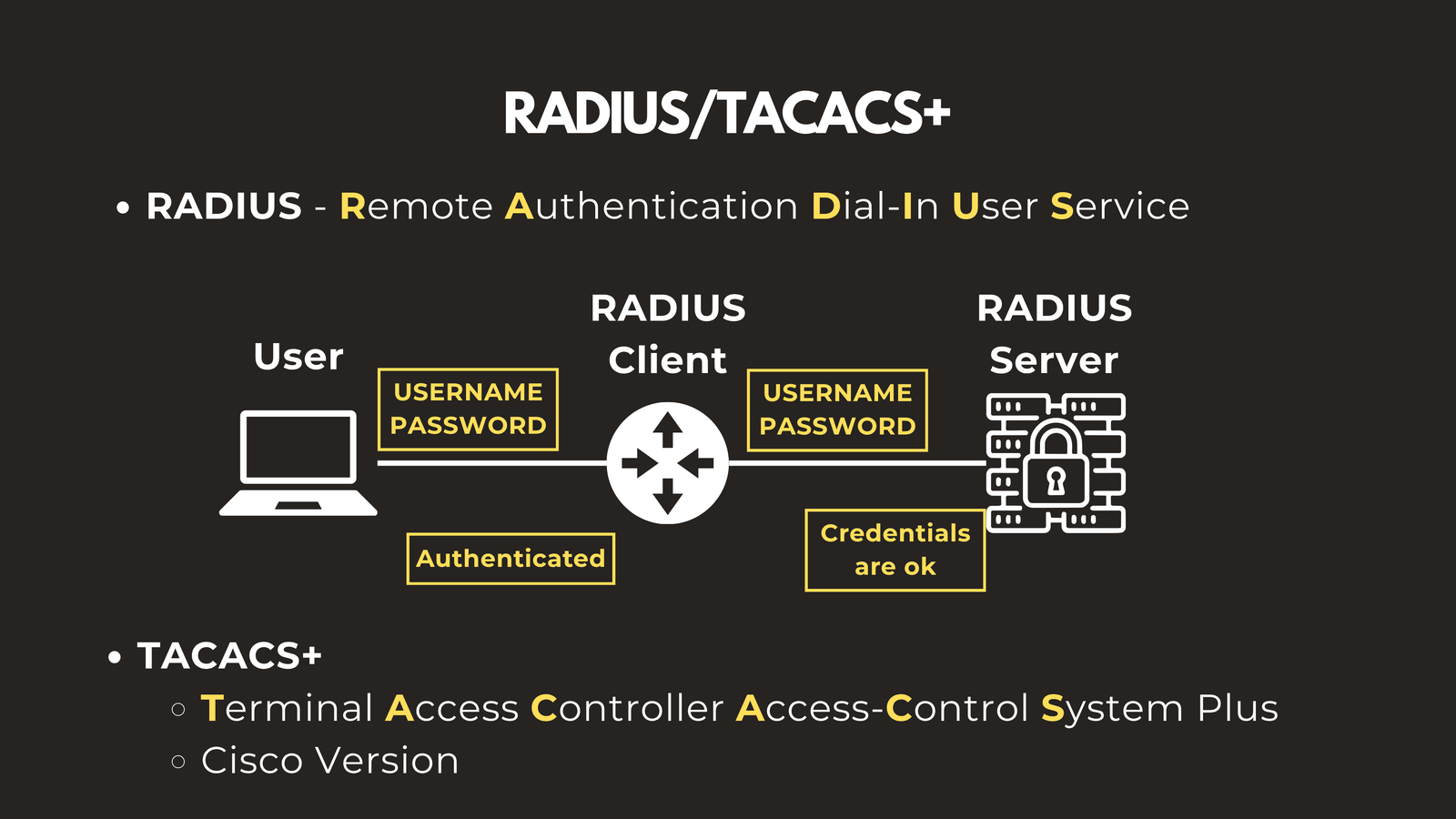
RADIUS — Remote Authentication Dial-In User Service
RADIUS provides centralized Authentication, Authorization, and Accounting (AAA) for network access. When a user tries to connect to a VPN or corporate Wi-Fi, RADIUS verifies their credentials against a central database before granting access. It is an open standard, making it compatible with multi-vendor environments.
TACACS+ — Terminal Access Controller Access-Control System Plus
TACACS+ serves a similar AAA function to RADIUS but is Cisco’s version of the implementation. A key distinction is that TACACS+ encrypts the entire communication session, whereas RADIUS only encrypts the password. It is the preferred choice for controlling administrator access to network infrastructure.
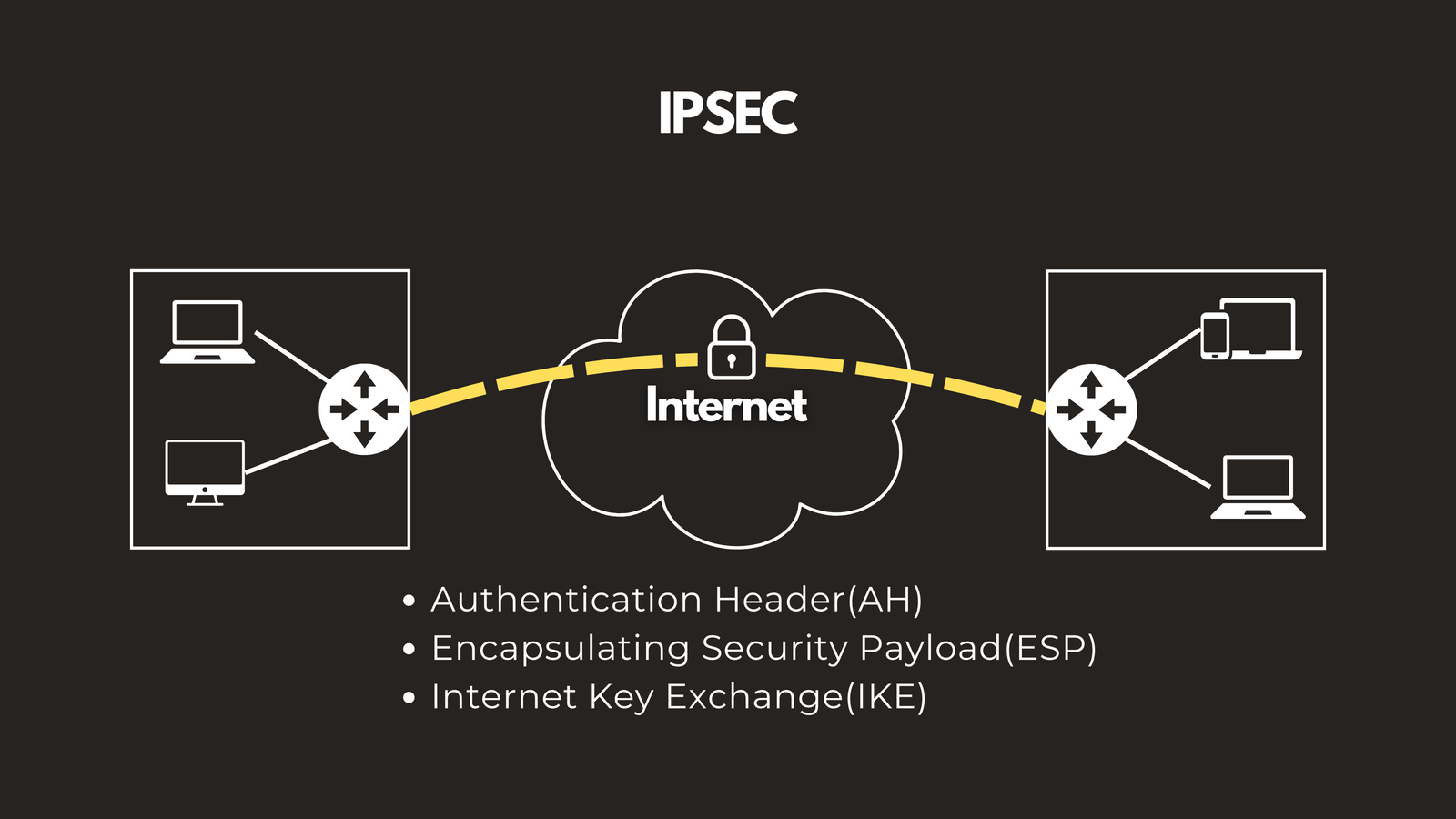
IPsec — Internet Protocol Security
IPsec is a suite of protocols that secures IP communications by encrypting and authenticating every packet. It’s the backbone of most modern VPN implementations and operates using three core components:
- AH (Authentication Header) — Ensures data integrity
- ESP (Encapsulating Security Payload) — Provides encryption
- IKE (Internet Key Exchange) — Handles authentication and establishes Security Associations (SAs) between devices
Wrapping Up
Network protocols are the foundation of everything that happens on the internet and within your organization’s infrastructure. From the moment your device gets an IP address to the encrypted SSH session you use to manage a router, protocols are orchestrating every step of the process.
Understanding these protocols — what they do, how they work, and when to use them — is an essential skill for any network engineer or IT professional.
Have questions about Network Protocols? Check out the video on this link https://youtu.be/YzTOaKPq4J8, drop a comment and let’s discuss!